
Help Center
How can we help?
Everything you need to trade on Kalshi Pro, from your first fill to leverage on perpetuals.
Reference
Settings and preferences
Two synced gear menus control the order book view, Canvas columns, quick-expiry chips, and more.
2 min read · Updated Jul 17, 2026
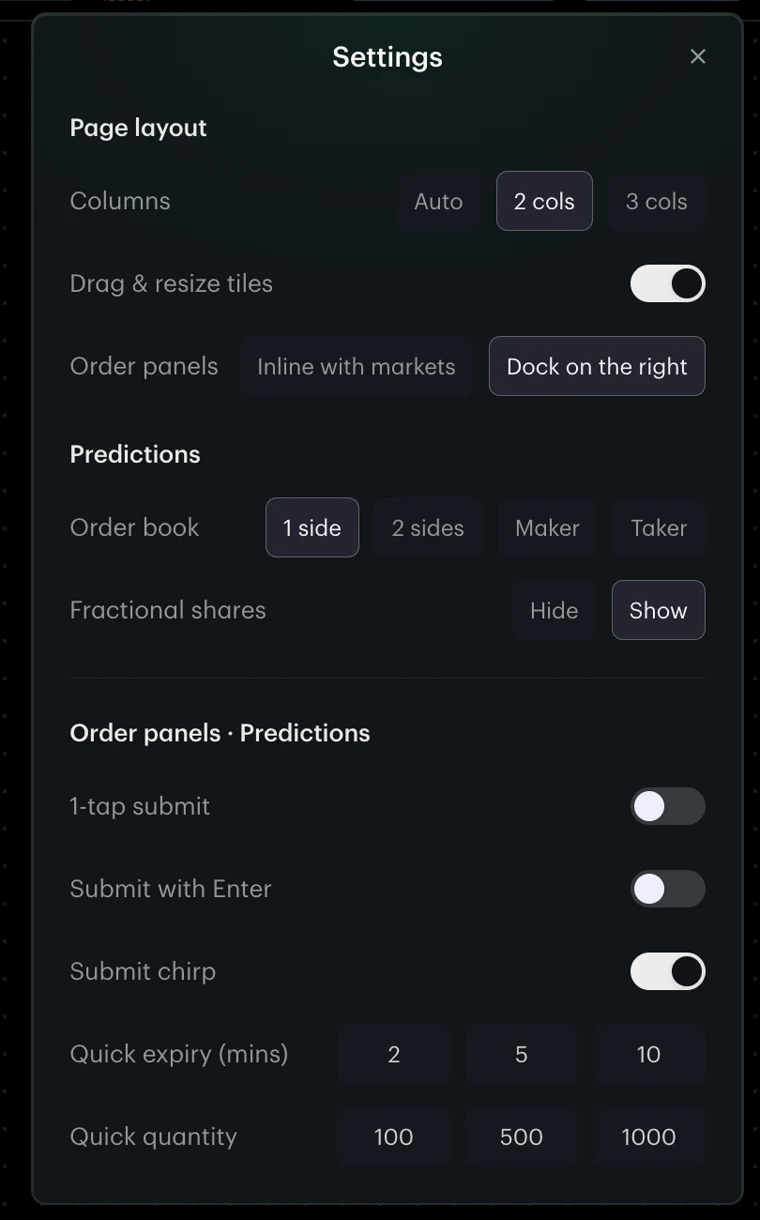
Pro keeps its settings in two gear menus that stay in sync: one on the Canvas toolbar and one in the order book header of the full trade view. Changing a setting in either updates both, and every open market picks it up immediately.
Settings you’ll find there:
- Order book view: 1-sided, 2-sided, Maker, or Taker.
- Full order book: show the complete price ladder in Maker/Taker views.
- Hide fractional shares: round displayed sizes to whole shares.
- Auto layout / columns: let Canvas pick the column count, or fix it at 2 or 3.
- Quick-expiry chips: set the one-tap expiry shortcuts on the order panel (up to three, in whole minutes).
- Submit with Enter: place or advance an order by pressing Enter in the panel.
- Submit sound: a short confirmation tone when an order lands.
- 1-tap send: skip the review step.
Preferences are stored in your browser, per device.